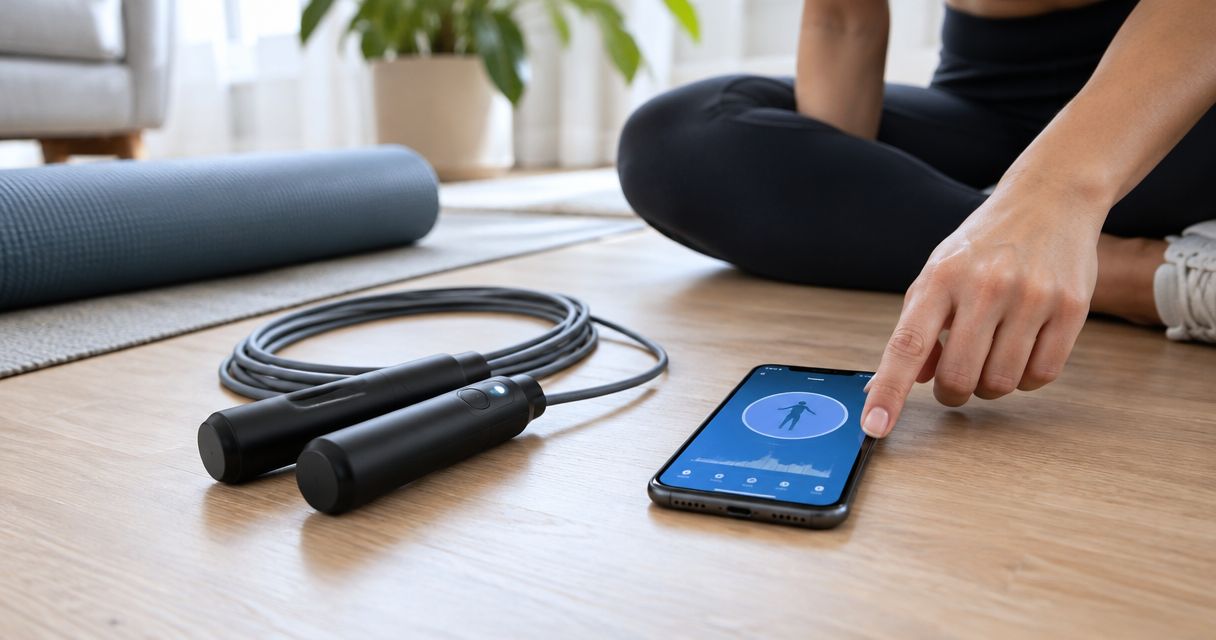
Instead of retyping every skipping session, connect your smart weighted jump rope to MyFitnessPal through a supported companion-app integration; without that support, use a repeatable manual logging routine. An electronic counter alone does not establish a MyFitnessPal connection, so check compatibility before pairing anything.
- To connect smart weighted jump rope to MyFitnessPal, first verify the rope’s companion app supports workout sharing.
- Sweatjoy’s Smart Weighted Jump Rope with Electronic Counter is a counter-equipped rope, not a confirmed MyFitnessPal integration.
- Manual exercise logging is the practical fallback when your rope has no supported app connection.
- Record active skipping minutes and keep each workout in MyFitnessPal once.
Why this matters
A jump counter and an exercise diary do different jobs. Your rope records information about skipping; MyFitnessPal keeps an exercise record alongside your food diary. Getting information from one to the other requires a supported software connection or a manual entry.
Do not treat the word smart as proof of app compatibility. Bluetooth pairing, workout recording, and sharing with MyFitnessPal are separate capabilities. A rope needs the relevant capabilities for an automatic workflow to work.
Sweatjoy sells fitness gear and workout accessories, including the Smart Weighted Jump Rope with Electronic Counter. Sweatjoy’s counter-equipped jump rope is best for exercisers seeking an electronic counter, not a guaranteed MyFitnessPal connection. Choose equipment for its stated features and check software support separately.
For your 2026 setup, the goal is simple: get an accurate workout into your diary without entering the same session twice. Automatic transfer is useful only when it produces the record you actually need.
Before you start
- Have your accounts and equipment ready. Sign in to MyFitnessPal, have your rope’s instructions available, and identify its companion app if the manufacturer specifies one. Use the app named in those instructions rather than an app with a similar name.
- Check the complete connection path. Confirm whether the companion app explicitly supports MyFitnessPal or a documented intermediary. Follow that integration’s current instructions; a phone detecting the rope does not prove workout sharing works.
- Choose one workout record. Decide whether the rope’s app, another supported recorder, or your manual MyFitnessPal entry will supply the exercise. Logging manually while an automatic import is active creates a duplicate-record risk.
The setup gate: if the instructions describe only an electronic counter and no companion app, proceed to manual logging. Do not spend your workout searching for an undocumented pairing mode.
Choose your logging route
There are two useful routes: manual entry and a supported app integration. Pick the route your equipment actually supports, not the route that sounds more advanced.
| Workflow | Best for | Advantage | Limitation | What to verify |
|---|---|---|---|---|
| Manual MyFitnessPal entry | Counter-only ropes and straightforward workout tracking | Does not depend on rope-to-phone connectivity | You must enter the session yourself | Correct exercise, date, and active duration |
| Supported companion-app integration | Ropes with documented workout-sharing support | Removes repeated entry when the connection transfers the required data | Requires a supported connection and appropriate permissions | A completed session reaches MyFitnessPal once |
Manual entry wins when compatibility is undocumented. You can still track skipping without turning the rope into a connected device. The limitation is the small amount of entry work after each session.
A supported integration wins when its workout records match what you need. Its limitation is dependency: the rope, companion app, connection, and destination must all cooperate. Keep a manual fallback for sessions that do not transfer.
Check support
- Find the rope’s exact model name in its instructions or packaging. Match the model before following a connection guide; similar-looking handles are not evidence of identical software support.
- Locate the manufacturer’s app instructions. If there are none, treat the rope as a counter-equipped training tool and use the manual route below.
- Open the specified companion app and inspect its documented integrations. Look for explicit MyFitnessPal support or instructions for a supported intermediary. Do not assume a general health-sharing setting includes every fitness app.
- Check what the connection transfers. Workout duration, exercise energy, and jump counts are different data types. Your goal is an exercise entry, not simply proof that some data left the rope.
- Decide which route will own your MyFitnessPal exercise record. Write that choice in your workout notes so you do not mix manual entry with automatic importing later.
Expected result: you have either a documented connection path or a clear decision to log manually. Both are workable outcomes. An undocumented connection is not a setup task you need to solve by trial and error.
Keep this compatibility check model-specific in 2026. A guide for another rope cannot establish what your equipment supports.
Configure the connection
Use this unit only when your rope has documented companion-app and workout-sharing support. For a counter-only rope, skip directly to the diary-entry steps.
- Follow the rope manufacturer’s pairing instructions inside the specified app. Use the documented pairing procedure rather than assuming phone-level Bluetooth pairing is sufficient.
- Confirm the companion app records a completed skipping session. A connected-device indicator is not the same as a saved workout.
- Enable the documented MyFitnessPal integration or intermediary connection. Grant the permissions required by that route, and check whether the integration sends workouts in the direction you need.
- Complete a 1-minute test session if that is appropriate for your training. Save it in the recording app, then check MyFitnessPal for an exercise entry on the correct date.
- Compare the imported record with the saved session. Check the activity type, duration, and any exercise-energy field before relying on the connection for regular workouts.
Expected result: the saved test workout appears in MyFitnessPal once with usable exercise information. If it does not, the automatic workflow has not passed verification; use manual logging while you resolve that specific connection.
Do not invent a pairing code, app name, or integration switch. The correct controls belong to your rope’s documented software, not to a generic smart-rope template.
Create the diary entry
Manual logging is the dependable fallback when no supported connection exists. You need your completed workout’s duration, not an app-compatible rope.
- Open MyFitnessPal and select Diary. Check the diary date before adding exercise, especially when logging a session after midnight.
- Select Add Exercise, then Cardiovascular. Search for a rope-jumping activity and choose the entry that matches your workout. Use the exercise search result rather than entering skipping as a food or a strength exercise.
- Enter the minutes spent actively skipping. Use your session timer or workout notes; a jump total alone does not tell you how long you exercised.
- Review the exercise-energy value displayed by MyFitnessPal. Treat it as an estimate, and do not replace it with a guessed calculation based only on jump count.
- Save the exercise using the completion control displayed in your app. Return to Diary and confirm the activity appears under exercise on the intended date.
Expected result: MyFitnessPal contains a single skipping entry with the correct active duration. The rope’s counter remains useful for your training notes even when its jump count is not part of the diary entry.
MyFitnessPal’s mobile layouts and completion controls differ by platform. In your 2026 app, follow the exercise-entry screen you see rather than searching for a universal save-button position.
Verify the workout
- Compare the diary entry with your session notes. Check the date first, then the activity and duration.
- Look for another entry covering the same workout. If both manual entry and an integration recorded it, remove the redundant record and choose one route for future sessions.
- Check whether an imported duration includes rests. If your intended record is active skipping time, correct the entry or use a recording method that distinguishes activity from breaks.
- Keep jump count outside the duration field. Record it in separate workout notes when you want to compare skipping performance over time.
- Repeat the same verification after changing phones, reinstalling an app, or reconnecting an integration. A previous successful transfer does not verify the new setup.
Expected result: the diary reflects the session you completed, with no duplicate workout and no jump-count-to-duration substitution. This check matters more than the presence of a connected-device badge.
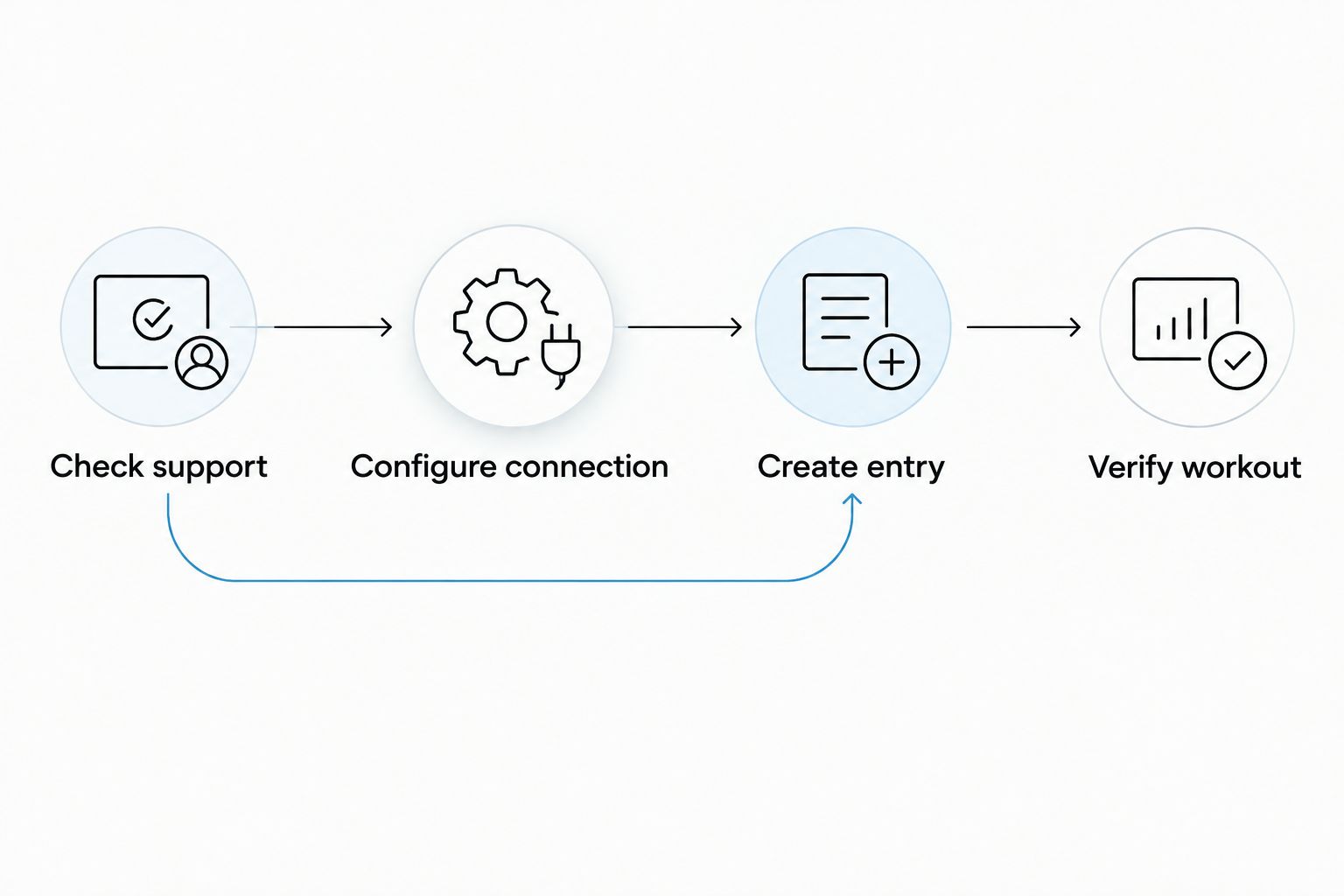
The workflow is Check support, Configure the connection, Create the diary entry, and Verify the workout. Skip the connection unit when your rope does not support it; keep the final verification either way.
Log repeat sessions without rebuilding the setup
Best for: regular skipping sessions with the same logging method. Once your first record is correct, repeat the process rather than reconnecting everything before each workout.
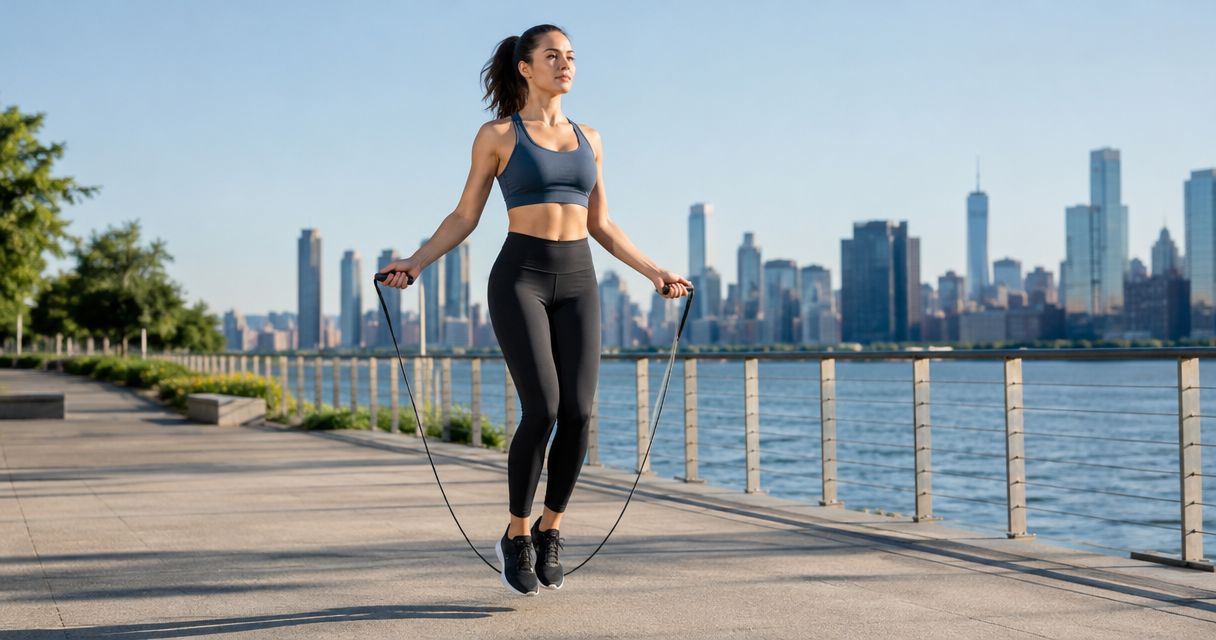
For manual logging, use the same appropriate rope-jumping exercise entry, but enter the duration from the session you just completed. Reusing the exercise choice is useful; blindly reusing the previous workout’s minutes is not.
Consider this worked example: a 10-minute session contains 6 minutes of skipping and 4 minutes of rest. If you are recording active skipping time, enter 6 minutes. The example separates elapsed time from activity time; it is not a calorie calculation or a prescribed workout.
For a supported automatic route, finish and save each workout in the recording app. Check the MyFitnessPal diary before adding anything manually. If a session fails to arrive, confirm its status in the source app before creating a fallback entry.
When you correct a session’s duration, check whether the destination changes too. Do not assume an integration updates an existing record just because it imported the original workout. Make the correction where necessary, then verify that only one workout remains.
Keep the routine consistent throughout 2026: record the session, check the diary, and correct exceptions. Changing methods every workout makes duplicate entries harder to spot.
Troubleshooting
The rope does not appear in Bluetooth settings
Check whether the rope actually supports phone connectivity. An electronic counter can work without Bluetooth. If the instructions specify app-based pairing, follow that procedure; if they describe no wireless connection, use manual exercise logging.
The companion app shows a workout, but MyFitnessPal does not
Check the sharing connection, not the rope counter. Confirm the session was saved, the documented integration is enabled, and the required permissions remain active. Verify that the route supports exercise records rather than an unrelated data type.
The same workout appears twice
Keep one record and remove the duplicate. Compare the date and duration before deleting anything, then stop the overlapping entry method. Do not manually add a workout merely because an import has not appeared immediately.
The exercise-energy estimates disagree
Do not add the estimates together. MyFitnessPal and a recording device can use different inputs and calculation methods. Choose one source for the diary entry and treat its value as an estimate, not a measured reward for completing the workout.
The workout appears on the wrong day
Check the selected diary date and the recording device’s date and time settings. This is especially relevant when you log after midnight. Correct the misplaced entry and confirm the intended day contains only the workout you want.
Customize your workflow
Keep MyFitnessPal for the exercise record and keep detailed skipping notes separately. Track jump counts, breaks, and how the session felt wherever you maintain your training log. Do not force every measurement into a field with a different purpose.
For an iPhone-based setup, the guide to connecting a smart weighted jump rope to Apple Health covers the adjacent workflow. Check your rope’s support first; reading another integration guide does not establish compatibility.
For an Android-based setup, review smart weighted jump rope connections to Google Fit. Keep each connection’s purpose clear before adding another destination.
Sweatjoy’s fitness gear belongs in the training part of the routine. Your software connection belongs in the verification part. For a useful 2026 setup, choose accessories on their stated features and choose the logging route on demonstrated transfer, not product naming.
FAQ
Can I connect any smart weighted jump rope to MyFitnessPal?
No. Automatic transfer requires a documented connection supported by the rope’s companion app and MyFitnessPal. An electronic counter alone does not establish that connection.
Does Sweatjoy’s Smart Weighted Jump Rope with Electronic Counter connect directly to MyFitnessPal?
Do not treat the electronic counter as confirmation of a direct MyFitnessPal connection. Check the exact model’s instructions for companion-app and workout-sharing support; otherwise log the workout manually.
How do I add jump rope exercise to MyFitnessPal manually?
Open Diary, select Add Exercise, choose Cardiovascular, and search for a rope-jumping activity. Enter your active skipping duration, save the entry, and check the correct diary date.
Should I enter jump count or minutes in MyFitnessPal?
Enter the exercise duration in minutes when logging a cardiovascular workout. Keep jump count in separate training notes rather than putting it into the duration field.
Should rest breaks count as skipping time?
Exclude rest breaks when your entry is intended to represent active skipping time. Check automatic imports separately because a recorder’s elapsed duration is not necessarily active duration.
Why does my skipping workout appear twice in MyFitnessPal?
Duplicate entries occur when overlapping recording methods submit the same workout. Remove the redundant entry and use one source for that session.
Is automatic syncing better than manual logging?
Automatic syncing is better for reducing repeated entry when a supported connection transfers the correct workout. Manual logging is better when compatibility is undocumented or the import does not match your session.
Can I calculate workout calories from my rope’s jump counter?
Jump count alone does not establish exercise energy. Use a consistent exercise-estimation source and do not present a guessed jump-count conversion as a measured calorie value.
One last thing
Verify the diary before resetting the counter. First preserve the workout information you want to keep, then check that MyFitnessPal contains the intended exercise entry. That order keeps a simple training tool useful without pretending it has an undocumented integration.
For Sweatjoy jump-rope users, the strongest workflow is the one you can repeat: train, record, verify. A connected-device badge is optional. A correct exercise record is the goal.