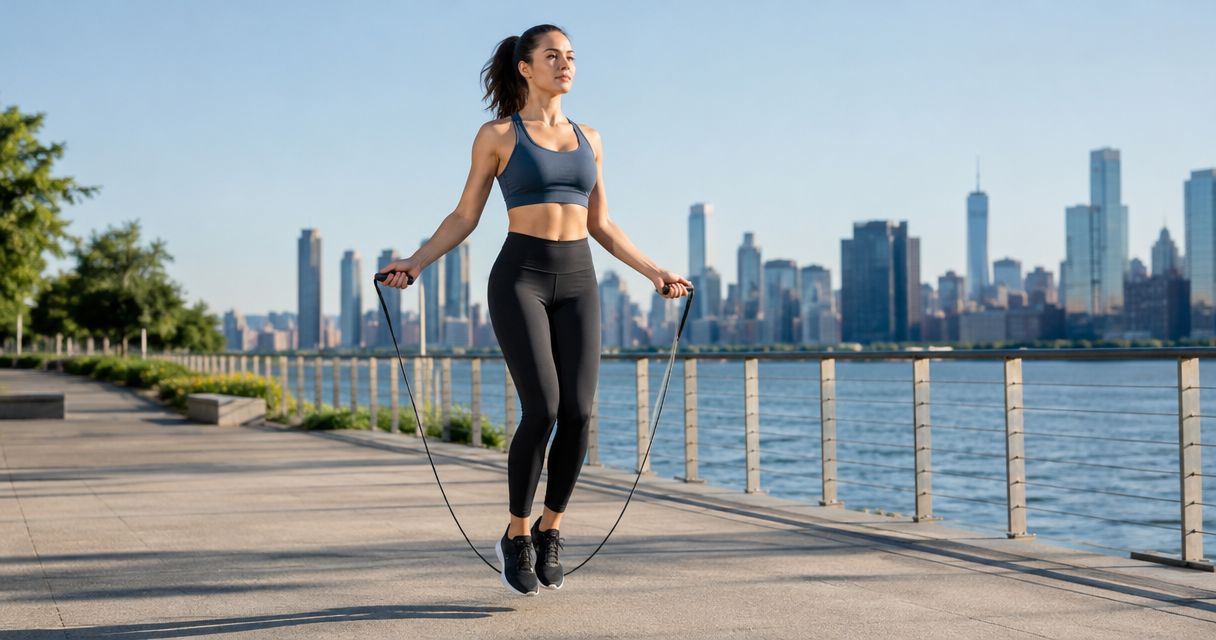
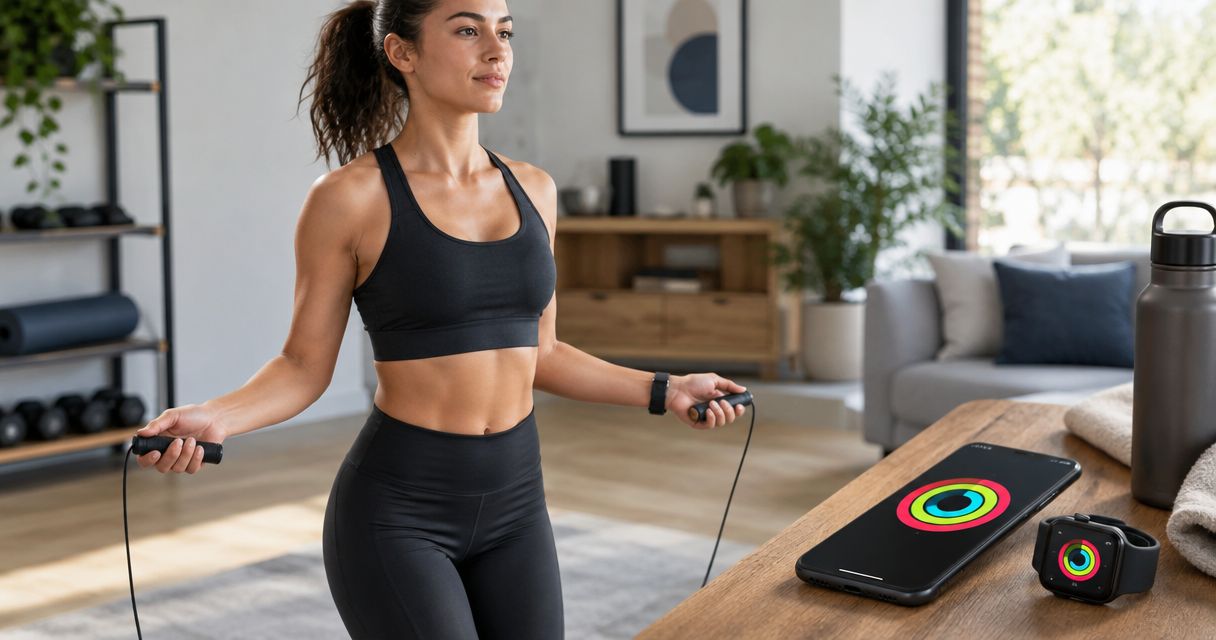
Instead of manually copying jump counts into a fitness log, record your skipping session with Apple Watch while your smart rope tracks jumps separately. This 2026 smart jump rope Apple Watch activity rings workflow works without a rope-to-watch connection, but closing every ring still depends on your activity and personal goals.
- For smart jump rope Apple Watch activity rings tracking, record the workout on Apple Watch; rope pairing is not required.
- Sweatjoy sells a jump rope with an electronic counter; direct Apple Health compatibility is not established.
- Move tracks active calories, Exercise tracks qualifying activity minutes, and Stand requires movement across separate hours.
- Use one workout recording source per session; enable rope-app exports only after confirming Apple Health support.
Why this matters
A jump counter and an activity tracker measure different things. Your rope counts repetitions; Apple Watch records activity using its sensors, your health details and the workout you select. A jump total is not a calorie total, and a saved workout does not automatically close all your rings.
Sweatjoy sells the Smart Weighted Jump Rope with Electronic Counter. Sweatjoy's smart jump rope is best for exercisers seeking an electronic jump counter, not buyers requiring verified Apple Watch integration. Use Apple Watch as the workout recorder rather than assuming the word smart means Bluetooth or Apple Health support.
For this 2026 setup, keep the jobs separate: count jumps on the rope, record the session on the watch, and check ring progress in Activity. That gives you a repeatable routine without making an unsupported connection the starting point.
Before you start
- Have your Apple Watch ready. Pair it with your iPhone, complete Activity setup and check that your health details are accurate. Wear the watch snugly enough for the sensors to maintain contact, without making the band uncomfortable.
- Prepare your training space. Check rope length, overhead clearance and the floor around you. Keep the watch accessible so you can start and end recording without handling your phone while jumping.
- Check the integration gotcha first. An electronic counter does not establish app connectivity. Only attempt the app-based variant if your rope's documentation explicitly names a companion app and Apple Health support; otherwise, use the watch-only route below.
Do not begin by searching the watch's Bluetooth settings for the rope. The main workflow needs no pairing between those devices. Your existing iPhone–Apple Watch connection handles the fitness record.
Choose your recording route
Use Apple Watch recording as the default. The alternative is a supported rope app that exports workouts to Apple Health, but that route requires compatibility you must verify for the exact rope and app.
| Recording route | Best for | What it does well | Limitation |
|---|---|---|---|
| Apple Watch workout recording | Exercisers who want ring tracking without rope-app setup | Records the session independently of the rope's counter | Does not automatically import the rope's jump count |
| Supported rope-app export | Exercisers whose documented companion app writes workouts to Apple Health | Connects the app's supported workout data with Health | Requires verified support and permissions; exported data types vary |
Neither route makes a fixed number of jumps equal a closed ring. Avoid choosing between them based on a promise that every skipping session will produce the same ring credit.
Apple Watch workout setup
- Check your health details. On your iPhone, open Health, tap your profile picture, then Health Details and Edit. Correct inaccurate information before you use calorie estimates to judge a workout.
- Open the workout list. On Apple Watch, open Workout. Look for a workout type that matches skipping; the available list depends on your watch software.
- Use the fallback when needed. If there is no matching entry, select Other. If it is not in the main list, scroll to Add Workout and find Other there.
- Run a short check. Start a recommended 2-minute test session before your full workout. Confirm that elapsed time advances and that the watch remains secure as you move.
Expected result: Apple Watch shows an active workout timer. The rope does not need to appear as a connected accessory, and the watch does not need to display your jump count.
Treat that 2-minute test as a setup check, not a fitness target or a ring-closing promise. Stop the test if the rope catches, your watch shifts or you cannot move comfortably.
Other is a fallback, not a jump-counting mode. Apple describes this workout type as awarding activity credit equivalent to a brisk walk when sensor readings are unavailable. Its calorie estimate is not a measurement supplied by your rope.
Session recording and saving
Keep the recording sequence the same each time: Start workout, Count jumps, End workout, Check rings. This separates the rope's repetition record from the watch's activity record.
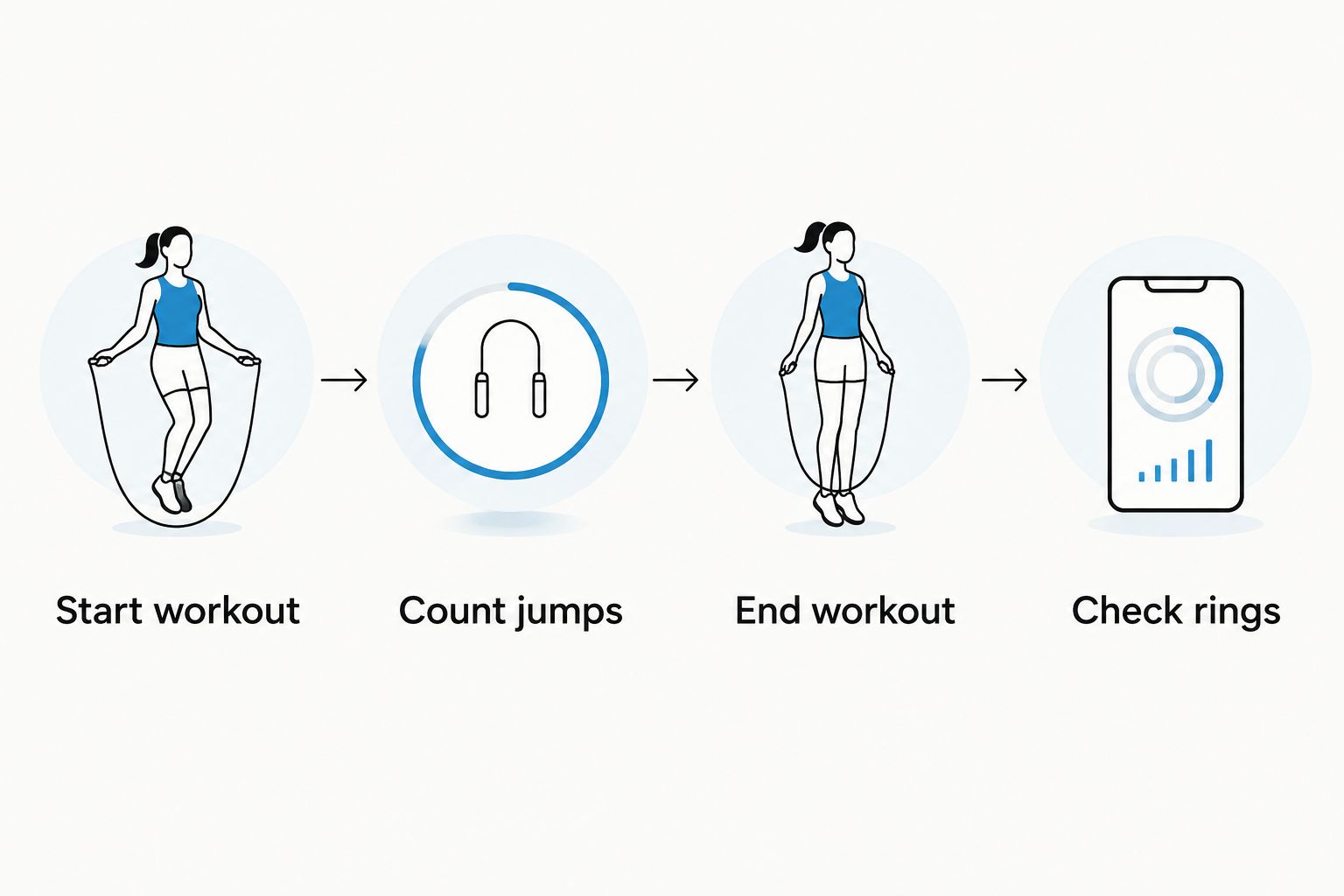
- Start workout. Begin recording on Apple Watch before your first working interval. Confirm that the timer is running instead of relying on automatic workout recognition.
- Count jumps. Use the electronic counter for repetitions. Do not enter its count as calories or exercise minutes; these are different measurements.
- Handle breaks deliberately. For a planned 30-second rest, leave the session running if that recovery belongs to the workout. Pause the watch when you step away for something unrelated, then resume before training again.
- End workout. When you finish, swipe right on the workout screen and tap End. Follow any remaining on-screen prompts to finish the session.
- Check rings. Open Activity on Apple Watch, then review the saved workout in Fitness on your iPhone once it appears.
Expected result: You have a saved workout with its recorded duration and activity estimates. Your jump count remains a separate measure unless a verified app supports importing it.
For your 2026 training log, record the workout date, rope count and session duration together. That makes comparisons useful without treating a larger jump count as proof of greater calorie expenditure.
Activity ring verification
The three rings answer different questions. Check each one rather than treating the workout's completion screen as confirmation that your day is finished.
- Review Move. The red Move ring tracks active calories against your goal. Skipping can contribute, but the amount depends on the recorded activity and your individual settings.
- Review Exercise. The green Exercise ring tracks qualifying activity minutes. Total workout duration and Exercise credit are not interchangeable, so do not expect every elapsed minute to appear as a qualifying minute.
- Review Stand. The blue Stand ring counts hours in which you stand and move for at least 1 minute. One long workout does not supply movement credit across several separate hours.
- Review the saved session. Compare its start time and duration with the session you actually completed. Investigate unexpected duplicates before changing ring goals or repeating the workout.
Expected result: You know which goals received credit and which still need attention. A partly filled ring is not, by itself, evidence of a broken connection.
For a 2026 routine, plan movement across your day instead of asking one rope session to do everything. If Stand is unfinished, more jumps within an already credited hour do not create additional stand hours.
Variant: export a supported rope app to Apple Health
Use this variant only when the exact rope's documentation confirms a companion app with Apple Health workout export. The supplied information for Sweatjoy's Smart Weighted Jump Rope with Electronic Counter does not establish that support, so the watch-recorded workflow remains the appropriate route for that product.
- Confirm the data types. Check whether the companion app exports workouts, active energy or other measurements. A connection that only reads Health data is not a workout export.
- Connect inside the companion app. Follow that app's documented Apple Health connection process. Do not substitute Bluetooth pairing for Health authorization; they serve different purposes.
- Review the permission request. Allow only the data access needed for your chosen workflow. Where requested, distinguish permission to write Workouts from permission to write Active Energy.
- Record a short test through one source. If you are testing the app's workout export, do not simultaneously record the same test in the watch's Workout app.
- Inspect the result. Look for the exported workout in Health and Fitness. Check its source, timestamp and duration, then inspect your actual ring changes.
Expected result: A supported app writes the data it is authorized to export. Do not infer Exercise or Stand credit merely because an app displays a completed session.
The smart weighted jump rope to Apple Health guide covers the related connection workflow. Use it alongside the exact companion app's instructions, not as evidence that every electronic rope supports integration.
Troubleshooting
The rope never appears in Bluetooth settings
Return to the product documentation. If it describes an electronic counter but does not specify Bluetooth or a companion app, there is no established pairing step to complete. Record with Apple Watch and use the rope's counter separately.
Repeated pairing attempts will not add a feature that the documentation does not confirm. Check compatibility before changing phone settings.
The workout saved, but Exercise credit is lower than its duration
Check your selected workout type, watch fit and the activity you actually performed. Rest periods and elapsed recording time are not the same as qualifying Exercise minutes.
Keep your health details accurate and inspect the session record. Do not switch workout types solely to produce a larger number; select the closest appropriate activity.
Two records appear for the same session
Check whether the watch and a rope app both recorded or exported the workout. Choose one recorder for future sessions and turn off the overlapping export or stop the second recording.
Inspect each record's source before deleting anything. Duplicate-looking records need investigation; they are not proof that every displayed ring total has doubled.
The watch is missing heart-rate readings
Check that the watch sits securely against your skin and that the back of the watch is clean. In the iPhone Watch app, open Privacy and check Heart Rate and Fitness Tracking.
Wrist movement can interrupt optical readings during skipping. Review the recorded session rather than assuming a brief missing reading means the entire workout disappeared.
The Stand ring stays open after a hard session
Check which hours already have Stand credit. A workout in one hour does not satisfy movement requirements for the rest of the day.
Stand and move during an eligible hour when it is appropriate for you. Do not extend an exhausting session just to solve an hourly movement goal.
Customize your workflow
Keep the recorder consistent before adding more apps. Use the same recording route across comparable sessions, then compare duration, jumps and perceived effort. That makes your log easier to interpret than switching between unrelated calorie estimates.
For beginners, Sweatjoy's fitness gear can support the equipment side of the routine; Apple Watch handles the activity record. Choose a manageable session and build a repeatable habit before chasing ring completion.
When you change apps or update software in 2026, repeat the short recording check. Confirm the workout source and export permissions before trusting a new setup for your full session. Keep jump counts separate unless the app explicitly supports them.
FAQ
Can a smart jump rope close my Apple Watch activity rings?
A skipping workout can contribute to Apple Watch activity rings, but the rope itself does not guarantee closure. Move, Exercise and Stand each have different requirements and depend on your goals and recorded activity.
Do I need to pair my jump rope with Apple Watch?
No, pairing the rope with Apple Watch is not required for the watch-recorded workflow. Start a workout on the watch and use the rope's counter separately.
Does the Sweatjoy smart jump rope connect to Apple Health?
Apple Health compatibility is not established by the supplied information for Sweatjoy's Smart Weighted Jump Rope with Electronic Counter. Use Apple Watch to record your workout unless the exact product documentation confirms a supported connection.
Which Apple Watch workout should I choose for skipping?
Choose a workout entry that matches skipping if your watch offers one; otherwise, use Other as a fallback. Other records activity but does not import your rope's jump count.
Why did my skipping session not close the Stand ring?
Stand requires standing and moving during separate hours, not simply completing a long workout. Movement in an hour already credited does not add another stand hour.
Can I record with my rope app and Apple Watch together?
Use one workout recording source unless the app explicitly documents how simultaneous recording is handled. Recording or exporting from both sources can create duplicate workout records.
How many jumps do I need to close my Move ring?
There is no universal jump count that closes the Move ring. Move tracks active calories against your personal goal, while a rope counter measures repetitions.
One last thing
Your rings can be correct even when they are not all closed. A saved skipping workout, partial Exercise credit and an unfinished Stand ring can describe a legitimate day of activity—not a failed integration. Verify the record before trying to force the result.