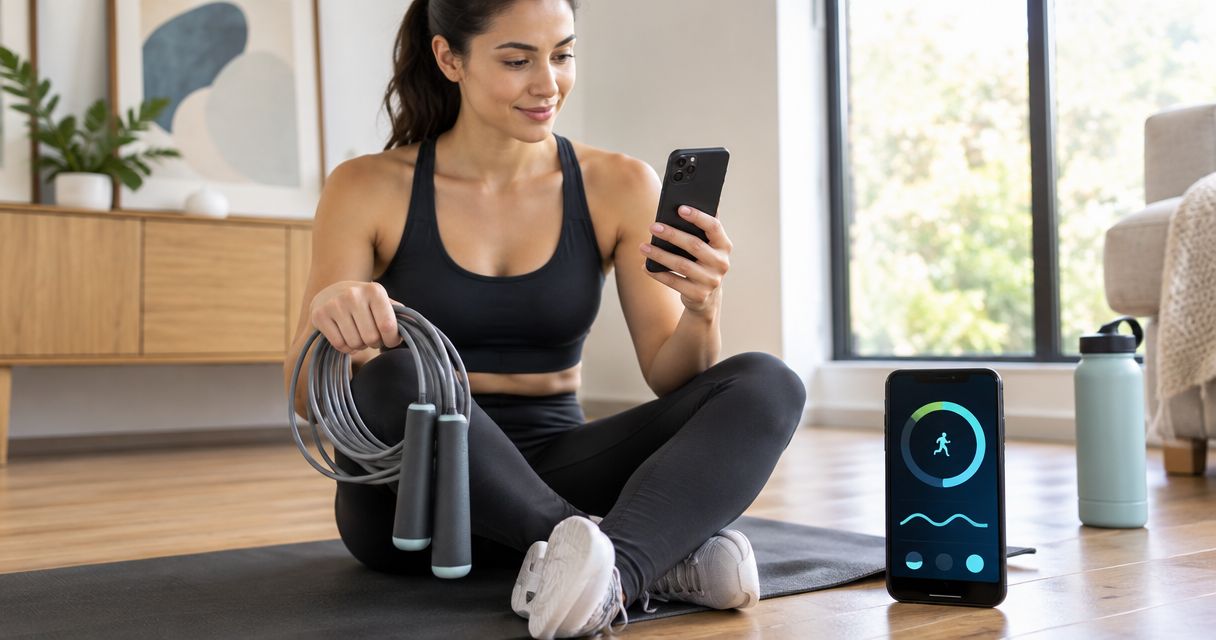
Instead of copying every skipping session by hand, connect your rope’s companion app to Samsung Health through a documented integration or Health Connect—if the app supports it. An electronic counter alone does not establish compatibility; without a supported connection, record your workout manually in Samsung Health.
- To connect smart weighted jump rope to samsung health, first confirm the rope’s companion app supports workout sharing.
- Sweatjoy’s electronic-counter rope has no confirmed Samsung Health integration in its supplied product information.
- Health Connect requires compatible apps and exercise permissions; Bluetooth pairing alone does not transfer workouts.
- Use manual workout entry when your rope has no supported app connection.
Why this matters
A rope counter, a Bluetooth connection and a saved health-app workout are different things. Your handle can count jumps without sending anything to your phone. Even a phone-connected rope needs an app that exports exercise records before Samsung Health can receive them.
Sweatjoy sells the Smart Weighted Jump Rope with Electronic Counter. Its supplied product information names an electronic counter, but does not establish Bluetooth, a companion app or Samsung Health compatibility. Do not treat the word smart as proof of connected workout tracking.
Sweatjoy’s smart weighted jump rope is best for fitness enthusiasts seeking an electronic counter, not a confirmed Samsung Health integration. The counter is the stated feature; automatic workout sharing is not.
For your 2026 setup, choose the connection route from the rope’s instructions and the app’s actual integration settings. Start with support, not pairing.
Before you start
- Have the rope’s instructions and exact model details. Identify the manufacturer’s named companion app, if there is one. Do not install an unrelated app simply because it mentions skipping.
- Have Samsung Health on your Android phone. For the Health Connect route, you also need a companion app that explicitly supports writing exercise data to Health Connect.
- Check the data-sharing direction before setup. An app that reads health data does not necessarily write workouts. A jump count displayed in the rope app does not prove that an exercise record reaches Samsung Health.
Keep your first test small. Use a 2-minute test session to check the connection, not to measure fitness progress. This is a setup recommendation, not a manufacturer requirement.
If the rope’s instructions contain no app or wireless setup, stop the connection attempt here. Move to the manual-entry workflow below. That avoids hunting for a device Samsung Health has no documented way to connect.
Connection route selection
Choose one route before changing permissions. These are workflow options, not interchangeable connection methods.
| Route | Best for | Advantage | Limitation |
|---|---|---|---|
| Documented direct integration | A companion app that explicitly names Samsung Health | Uses the app’s supported sharing route | Requires support from that specific app |
| Health Connect | A companion app that writes exercise records to Health Connect | Shares supported health data between compatible Android apps | Permissions cannot add export features the app lacks |
| Manual entry | A rope without a supported workout-sharing app | Lets you keep a workout history without connected hardware | Requires entry after training and does not import jump counts |
Use documented support as the deciding factor. Do not choose Health Connect just because it appears on your phone, and do not assume a direct integration exists because the rope uses Bluetooth.
In 2026, use the controls present on your installed app versions. Manufacturer instructions govern rope pairing; the available permission screens govern data sharing. A missing integration setting is not a reason to invent another connection route.
Rope and companion-app setup
Confirm support
- Read the rope’s instructions for a named companion app and a wireless-pairing procedure. An electronic-counter feature, by itself, is insufficient.
- Open the companion app’s integration or data-sharing settings. Look for an explicit Samsung Health connection or Health Connect support.
- Check which data the app exports. You need workout or exercise records for a workout-history workflow; access to unrelated health data does not establish that capability.
- Choose the direct route, Health Connect route or manual route from the comparison table. Keep that choice consistent during testing.
Expected result: You can identify a documented route from the rope to Samsung Health, or you have confirmed that manual entry is the appropriate workflow.
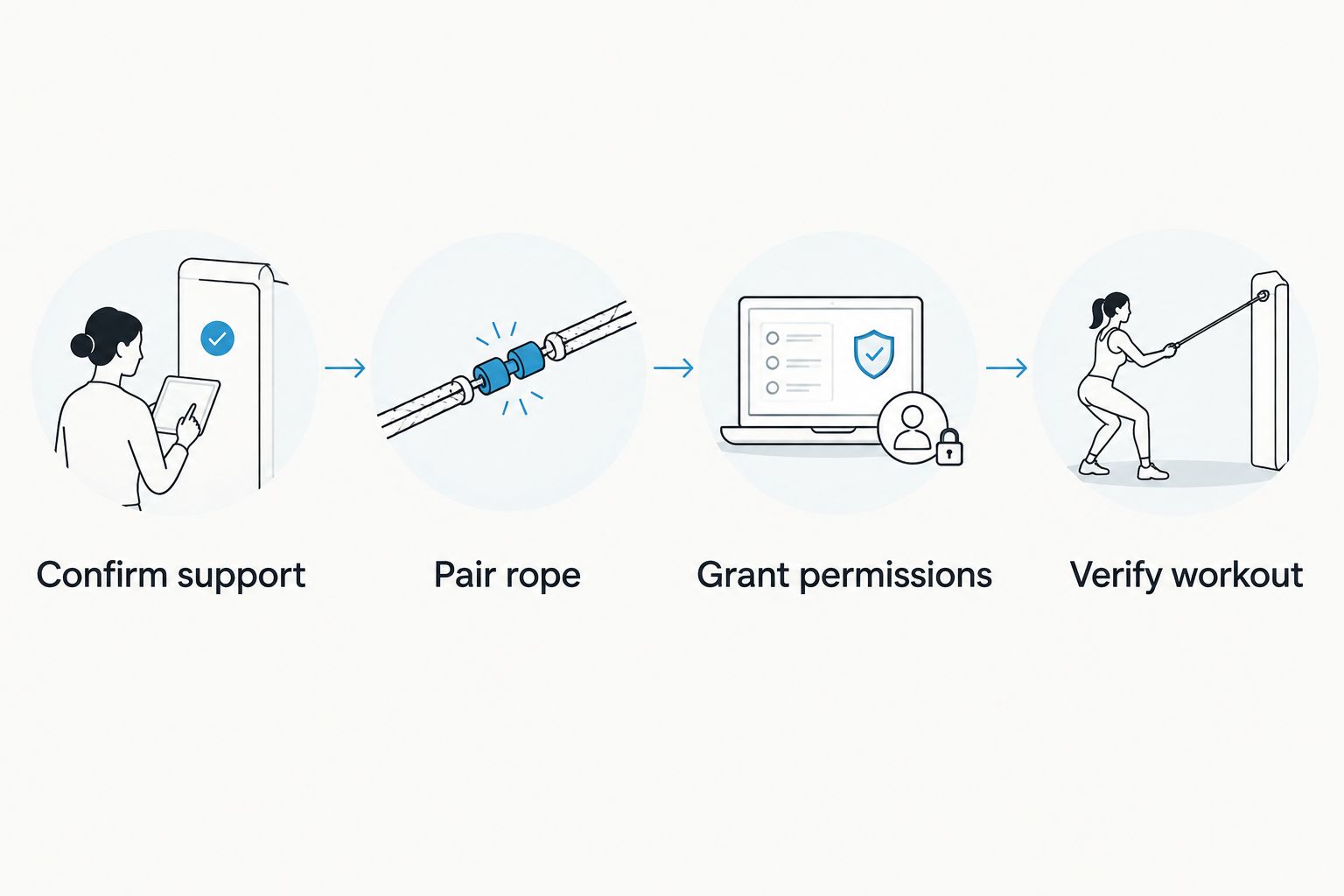
Pair rope
- Power the rope according to its instructions. If its counter needs a battery or charging, follow the manufacturer’s directions rather than guessing from another model.
- Follow the companion app’s documented device-add procedure. Use the app when its instructions require in-app pairing; a phone Bluetooth listing alone does not complete an app connection.
- Grant the Bluetooth or nearby-device permission requested for the documented pairing process. Do not grant unrelated health permissions as a substitute for pairing.
- Perform a short trial and save the session in the companion app, if the app supports saved workouts.
Expected result: The companion app contains a saved session from your rope. If the session exists only on the handle display, you have not established the data source needed for automatic sharing.
Do not troubleshoot Samsung Health yet if this check fails. The receiving app cannot import a workout that the source app has not saved or cannot export.
Samsung Health sharing permissions
Direct integration
Use this section only when the companion app explicitly offers Samsung Health integration.
- Open the companion app’s documented Samsung Health connection setting. Follow its authorisation process rather than searching Samsung Health for an unsupported rope device.
- Review the requested access and allow the exercise-sharing permissions needed for your workout workflow.
- Complete the connection and return to the companion app. Confirm that the app shows the connection as enabled.
- Save a fresh trial workout after authorisation, then inspect your Samsung Health exercise history.
Expected result: A new workout appears in Samsung Health with a matching session time and duration. A connected-account indicator alone is not the final check.
Do not enable an additional Health Connect route during this initial test. First establish whether the documented direct integration works on its own. Adding another route makes missing or duplicate records harder to diagnose.
Health Connect permissions
Use this section only when the companion app supports writing exercise records to Health Connect.
- Open Health Connect on your Android phone. Its location depends on your Android version; use your phone’s settings search if needed.
- Open App permissions and select the companion app. Check whether Exercise appears among the permissions it requests, and allow writing exercise data for this workflow.
- Return to App permissions and select Samsung Health. Allow reading Exercise data for the receiving side of the workflow.
- Return to the companion app and enable its documented Health Connect export setting, if it has a separate sharing switch.
- Save a fresh trial workout and check Samsung Health’s exercise history.
Expected result: The companion app can write an exercise record, and Samsung Health can read it. Both sides matter: permission on one app does not authorise the other.
For this 2026 workflow, Exercise is the relevant permission to inspect for workout records. Other permissions serve other data types; enabling everything does not fix an app that lacks exercise export.
If the companion app is absent from App permissions, return to its documentation. Health Connect is a data-sharing layer, not a universal adapter for every electronic fitness accessory.
Workout verification
Verify workout
- Complete the recommended 2-minute test session and save it in the source app.
- Open Samsung Health and inspect the exercise history, rather than looking only at daily activity totals.
- Compare 3 fields: session date, start time and duration. These checks help distinguish your new session from another workout.
- Confirm that 1 saved workout represents the test session. If you find duplicate entries, investigate overlapping routes before your next workout.
- Inspect the imported details. Do not assume that jump count, rope weight, heart rate or calories transferred just because a workout appeared.
Expected result: You can identify the test workout in Samsung Health and understand which details actually transferred.
A workout record is not a copy of every screen in the rope app. Keep the companion app or your own notes for details that do not appear in Samsung Health.
If you also track sessions elsewhere, the smart weighted jump rope to Google Fit guide covers an adjacent setup topic. Confirm that app’s support separately rather than assuming one working connection proves another.
Record a workout without connecting the rope
Manual entry is the appropriate alternative when the rope has no documented app connection, or its app cannot export exercise records. It records your training session; it does not connect the hardware.
- Note your actual workout date, start time and duration. Copy a jump count only if your counter provides it and you have somewhere suitable to retain that note.
- Open Samsung Health’s Exercise area and find your exercise history.
- Open the history menu and select Enter data where your installed version provides that option.
- Choose the appropriate exercise type from the available list. Enter your recorded session details without converting jumps into steps or inventing calorie expenditure.
- Save the entry and inspect the exercise history to confirm the date and duration.
Expected result: Samsung Health contains a manually recorded workout, while any counter-only details remain in your separate record.
For the Sweatjoy electronic-counter rope, this avoids claiming an integration that its supplied information does not establish. You still keep a training history. You simply do not call that history automatic syncing.
If your 2026 app layout differs, use Samsung Health’s in-app guidance to locate manual exercise entry. Do not follow a guessed menu path or select an unrelated activity solely to make the record appear.
Share new workouts automatically
Once a supported connection passes the test, keep the documented sharing permission enabled and save each completed session in the companion app. Automatic sharing still depends on the app creating and exporting the exercise record.
Use a fresh workout to verify any permission change. Editing an old session is a separate capability: do not assume edits, deletions or historical workouts transfer because new workouts do.
Best for routine tracking: Use one verified automatic route and check the first session after changing phones, reinstalling an app or altering permissions. Avoid adding a manual copy of a session already imported.
Troubleshooting
The rope does not appear during pairing
Confirm that the rope actually supports wireless connection and that you are using its named companion app. Then follow its power, pairing and permission instructions. No app setting can add Bluetooth to counter-only hardware.
The companion app is missing from Health Connect
Check whether the app explicitly supports Health Connect and whether you have enabled its documented integration. Installing Health Connect does not make unsupported apps appear in App permissions.
The workout is saved in the rope app but absent from Samsung Health
Check exercise writing access for the source app and exercise reading access for Samsung Health. Also inspect any separate export switch in the companion app. Save a new test workout after correcting permissions; do not assume historical sessions will backfill.
The same session appears twice
Check for a manual entry alongside an imported record, or multiple enabled sharing routes. Keep one intended route, identify the duplicate carefully and correct your workout history using the controls available in the app.
Jump count or other details are missing
Inspect what the source app exports and what Samsung Health displays. A shared exercise record does not guarantee every counter metric transfers. Keep unsupported details separately instead of relabelling jump counts as another metric.
Customize your workflow
Choose the record you want before adding more connections. For basic consistency tracking, session date and duration provide a straightforward log. For jump-count comparisons, preserve the counter reading alongside that log when Samsung Health does not receive it.
Keep your 2026 routine repeatable: finish the session, save the source workout, then confirm the receiving record. After setup succeeds, reserve detailed checks for changes to devices, apps or sharing permissions.
Train first; keep the logging method simple. Sweatjoy’s fitness accessories can be part of your workout without every accessory becoming a connected health device. Choose equipment for its stated training features and choose your tracking route for its documented data support.
FAQ
Can I connect any smart weighted jump rope to Samsung Health?
No. Automatic sharing requires a supported companion app and a documented Samsung Health or Health Connect integration. An electronic counter alone does not establish compatibility.
Does the Sweatjoy smart weighted jump rope connect to Samsung Health?
Samsung Health compatibility is not established by the supplied product information for the Smart Weighted Jump Rope with Electronic Counter. Use manual workout entry unless the rope’s instructions confirm a supported connection.
Is Bluetooth pairing enough to sync my skipping workout?
No. Bluetooth pairing connects devices, while workout sharing requires the companion app to save and export exercise records through a supported route.
What permissions do I need for the Health Connect route?
The source app needs permission to write exercise data, and Samsung Health needs permission to read it. Both apps must support the relevant workflow; permissions cannot create missing export features.
Will Samsung Health receive my rope’s jump count?
Do not assume jump count transfers. Check the exported data and the imported workout details; keep the counter reading separately if it is absent from Samsung Health.
How do I log skipping when my rope has no app?
Use Samsung Health’s manual exercise-entry option to record the session date and duration. Retain jump counts separately when the available entry fields do not support them.
Why does my jump-rope workout appear twice?
Check whether you entered the workout manually as well as importing it, or enabled multiple sharing routes. Keep one intended route and remove only the confirmed duplicate.
Will changing an old workout update Samsung Health automatically?
Only rely on edit syncing when the companion app documents that capability. Successful transfer of new workouts does not prove that edits, deletions or historical records also transfer.
One last thing
The strongest connection test is a saved workout, not a Bluetooth icon. Before trusting automatic tracking, identify the same session in Samsung Health by date, start time and duration. If that check fails, use manual entry rather than leaving your workout unrecorded.